This article will define the mail flow rules used for our application.
During a guided onboarding, LawToolBox assists you with setting up these email notification management rules. These rules are unique to LawToolBox and should not interfere with other rules in your Exchange Admin Center.
What do these mail flow rules control?
Should not be visible in the inbox:
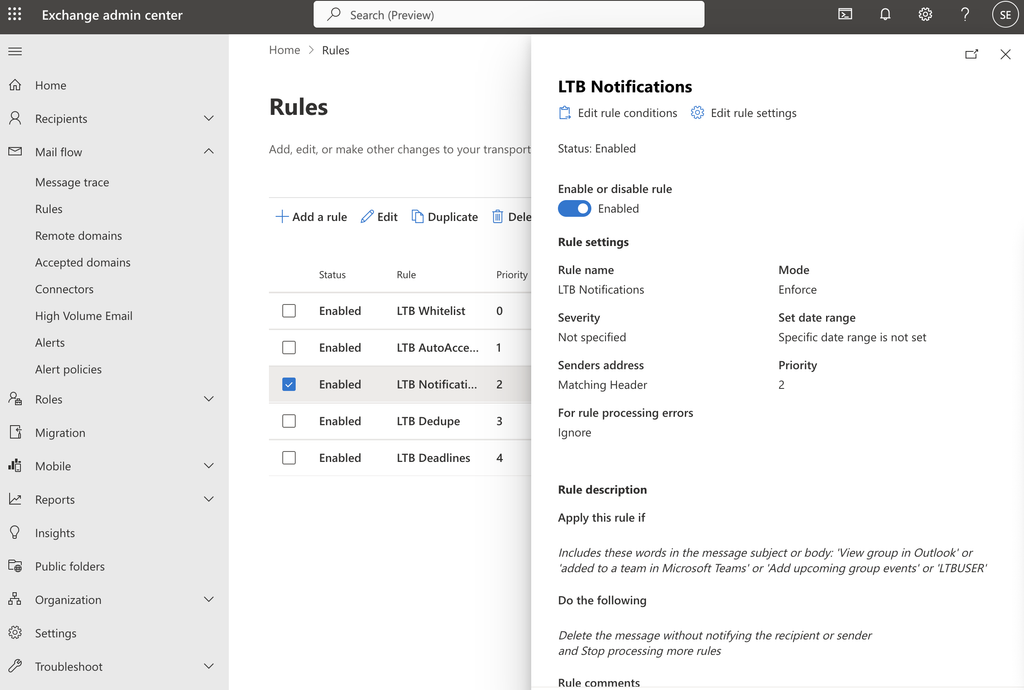
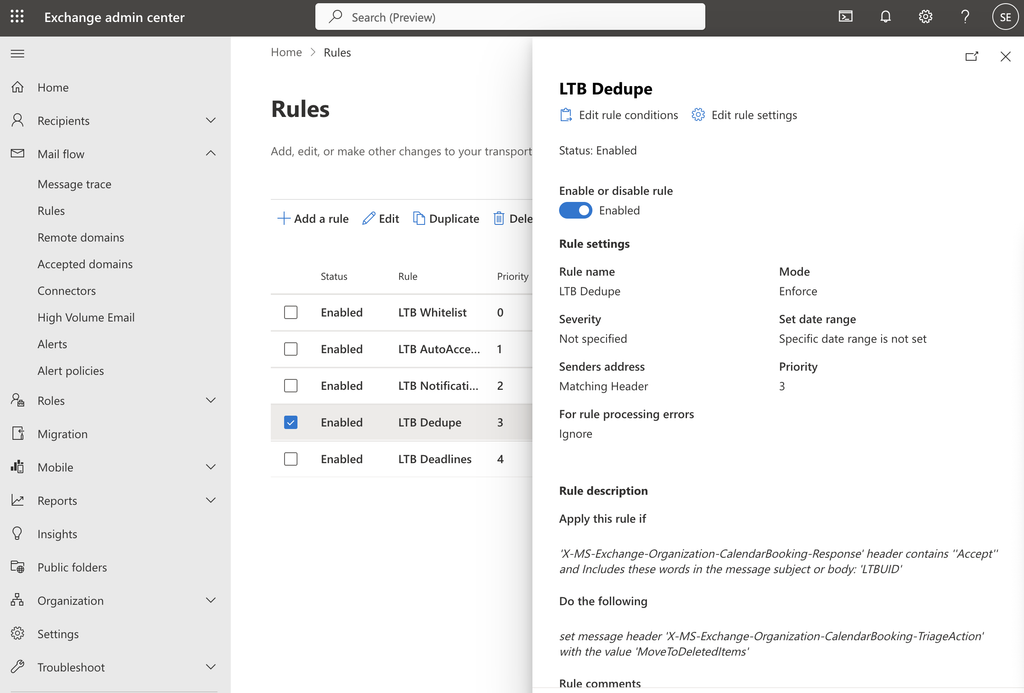
- A new email per each scheduled event
- “Upcoming group events” notices
- “View group in outlook” notices
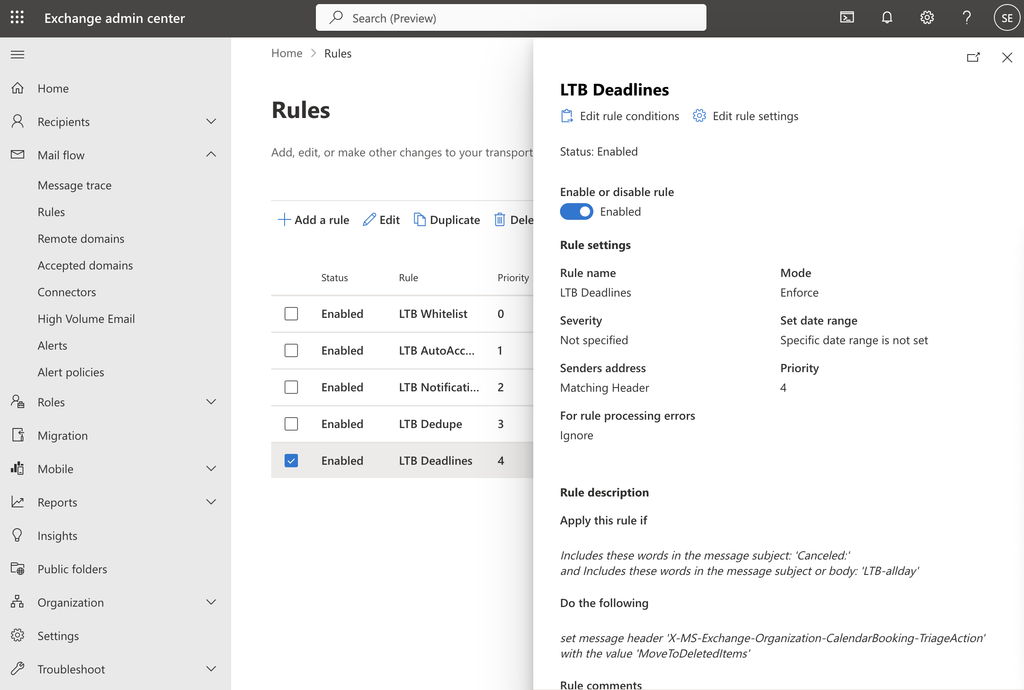
- Canceled deadlines or events in the inbox or calendar
- Undeliverables
Should hit the outlook:
- Reports
- Email reminders
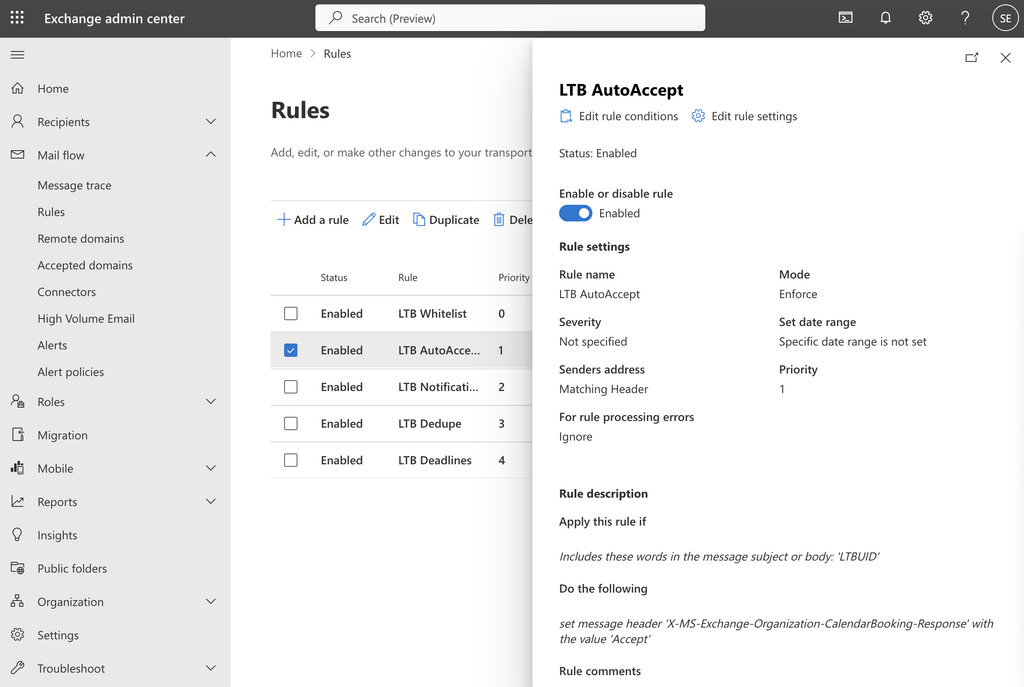
- Accepted confirmations in the “sent” folder
Open Exchange Admin Center
> Mail Flow > Rules > Rule Status = Enabled
Link: https://admin.cloud.microsoft/exchange#/transportrules
LawToolBox rules should be at the top, enabled and tagged with an LTB prefix.
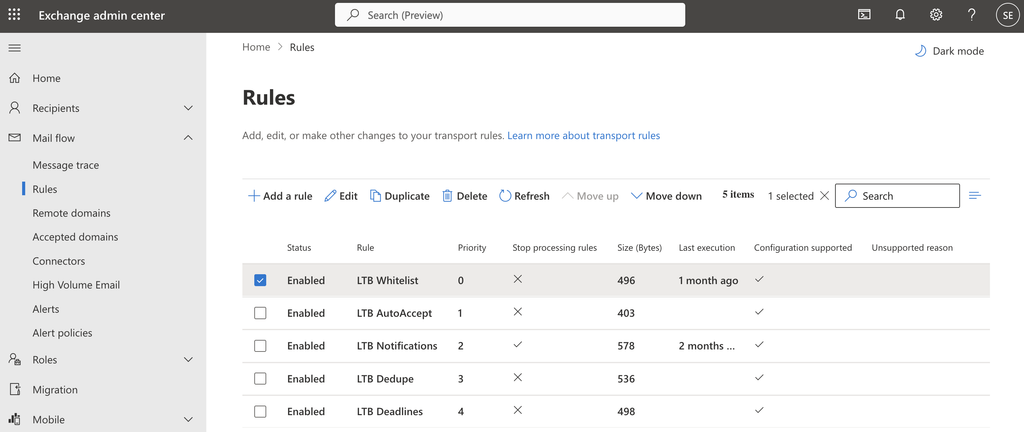
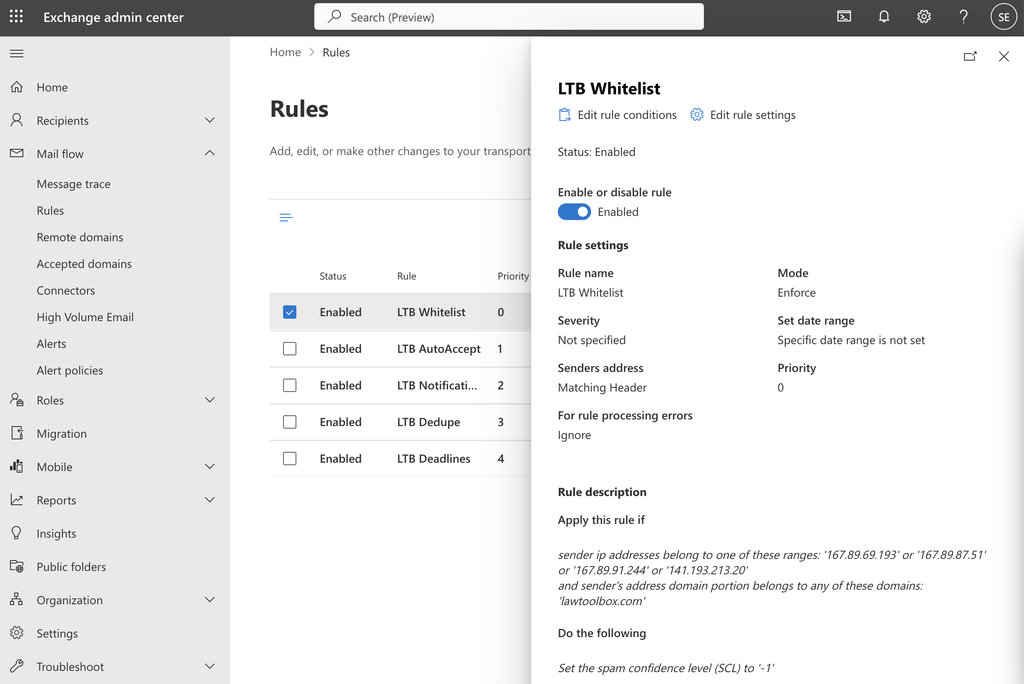
LTB Whitelist
LTB AutoAccept
LTB Notifications
LTB Dedupe
LTB Deadlines
Notes:
If you have other rules, we recommend moving LTB rules as Priority 0 – 4
Some rules may not work as effectively if deprioritized.
If you do not have these rules, creating them manually is time consuming.
Contact support if you would like to receive a script.
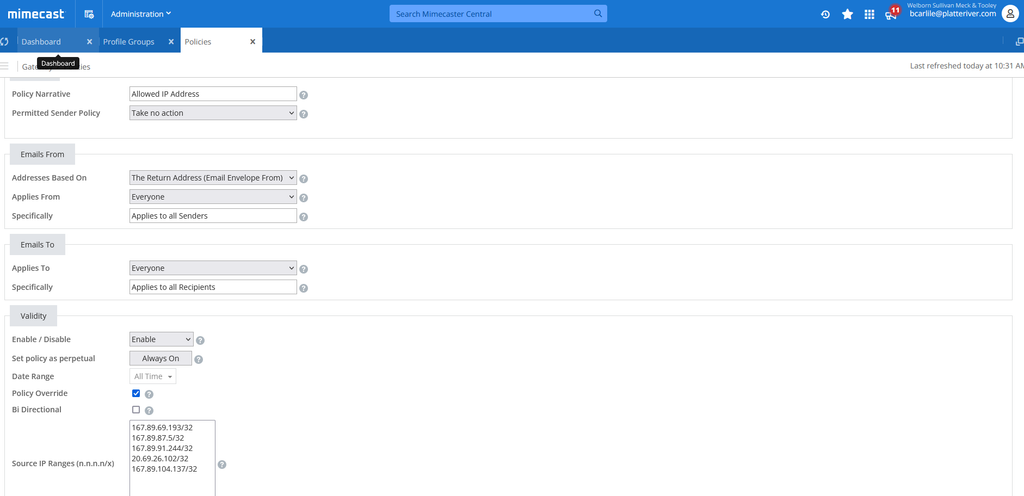
LTB Whitelist may need to be set up in your designated spam filtering service instead (mimecast, proofpoint, inky, etc.)
| LawToolBox IP address ranges | 167.89.69.193 167.89.87.51 167.89.91.244 141.193.213.20 |
| Safe Sender Domain | lawtoolbox.com |
Mimecast